4G trail cameras in the EU: unlocked SIM, setup and running costs
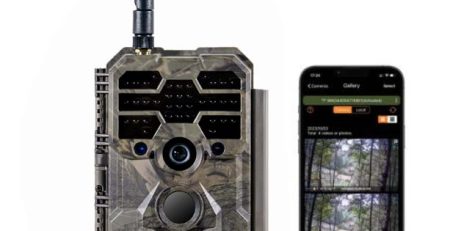
Short answer: choose the mobile operator by the signal at the exact tree where the camera will hang, not by the cheapest advert. An unlocked 4G camera lets you use any data SIM and pay only your own plan; a locked or integrated SIM ties you to one network and usually to a paid cloud. On modern cloud cameras such as GardePro you normally do not need to enter an APN: insert an active data SIM with the PIN disabled, connect the app and test at home before you go out.
A 4G trail camera is only as good as its connection. Most problems we see in support are not faulty cameras but a SIM with no data, a PIN that was never switched off, the wrong settings for the camera’s sending method or a weak signal at the site. This guide explains the difference between unlocked and locked SIMs, how to test signal properly, how to set up the card step by step, what drives data use and what a 4G camera really costs to run over one or two years in the EU.
1. Unlocked or locked SIM: two different business models
Unlocked SIM means the camera accepts a data SIM from any operator. You pick the network that works at your site, choose your own plan, and there are no extra charges from the camera maker for viewing photos or video. If one site turns out to be a dead zone, you simply swap the SIM for another operator’s.
Locked or integrated SIM means the card is assigned at the factory and tied to a contract or a cloud subscription. The operator cannot be changed. These cameras often have no screen and are sold as plug and play, but they usually cost more every year. Brands that use integrated or partner SIMs with their own cloud include Spypoint, Dörr, Seissiger and Zeiss, depending on the model line. We mention them as examples of this business model, not as a list of bad cameras.
A locked SIM can make sense when you want zero setup and the price does not matter, when that network is known to cover your site, or for a temporary or test camera. For long-term use at several sites, an unlocked camera is usually more flexible and cheaper.
2. Check the signal at the tree, not in the car park
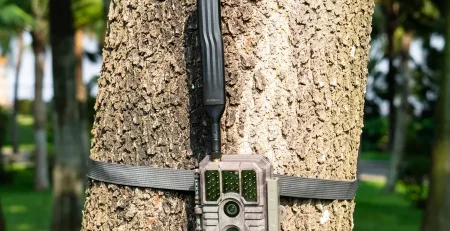
The bars on your phone in the car tell you little about the spot where the camera will hang. Stand at the planned tree, with a phone on the same network you intend to use, and hold it at roughly camera height. Check that mobile data actually works and that 4G is available, for example by loading a page or sending a photo.
- A stable connection matters more than five out of five bars.
- Check again in poor weather if you can; a marginal signal may drop in rain or when the trees are in leaf.
- If the signal is weak, move a few metres, try the other side of the tree or a different height. This often makes a real difference.
- Virtual operators (MVNOs) rent capacity on one of the big networks, so the signal you get is that host network’s signal.
- If no operator works, consider a different site or an SD-only camera such as the GardePro A60. GardePro also offers a 4G antenna for sites with weak signal.
Use a SIM from a network that covers the site. If you plan to use a SIM issued in another country, check its roaming terms with the operator before relying on it for a permanent installation.
3. Sending methods: cloud, e-mail, FTP and MMS are not the same
The most common mix-up is entering one profile for everything. Cameras send images in different ways, and each needs different settings:
| Method | What the camera does | What you need |
|---|---|---|
| Cloud / app | Sends previews and files to the maker’s app | Active mobile data. On modern systems such as GardePro the operator profile is usually set automatically |
| Internet / data APN | General mobile data, the basis for app transfers | The operator’s internet APN, only if the camera asks for it |
| E-mail (SMTP) | Sends files to an e-mail address | Internet APN plus mail server, port, user name and password |
| FTP | Uploads files to an FTP server | Internet APN plus FTP address, folder and login |
| MMS / WAP | Older method that sends a picture message | Separate MMS settings (MMSC, proxy). MMS/WAP is not internet |
With GardePro cloud cameras, in our service and field experience a manual APN is not needed in most cases: insert an unlocked SIM with active data, pair the app and the camera connects to the cloud. If a camera’s menu does ask for an APN, enter the internet profile your operator publishes on its help pages, not the MMS profile, and check it with the operator because these values can change.
E-mail mode has its own trap: the camera can connect perfectly and the message still never arrives, because the mail provider blocks it. Two-factor authentication, security filters and blocked “less secure apps” are common causes. If your provider does not allow an app password, cloud or app delivery is the practical choice.
Keep in mind that the cloud itself can fail. If the maker’s server or app has an outage, the camera keeps recording to the SD card but nothing appears on your phone, even though SIM, settings and signal are fine.
4. Step by step: SIM setup and the home test
- SD card: it is your archive, even on a 4G camera. Format it in the camera.
- SIM with data: make sure the plan includes mobile data and is activated. Prepaid cards with data blocked will not work.
- Disable the SIM PIN in a phone first (SIM settings, then turn off the PIN).
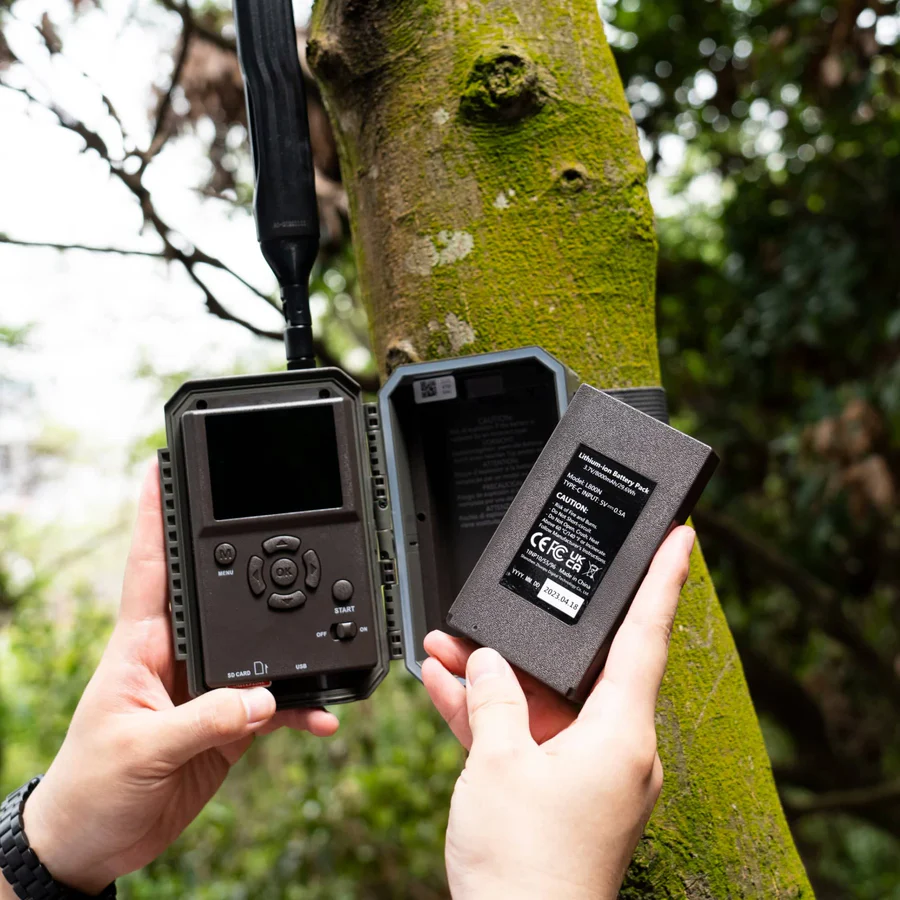
- Insert the SIM with the camera switched off, in the right orientation; do not force it. Close the cover so no moisture reaches the contacts.
- Choose the sending method in the menu or app before entering anything. For GardePro cloud, usually leave the APN alone and run the connection test in the app.
- Home test: take a test photo, and on live-view models open live view, in the garden or by a window with signal. Pack up only when the image arrives in the app.
- Test at the site: mount the camera and wait for the first trigger or a manual test. If it works at home but not on the tree, the cause is almost always signal or position.
GardePro’s own activation video shows the app pairing and live view on the X60P Pro Max Live:
5. Common mistakes and what to check first
| Symptom | Likely cause | What to do |
|---|---|---|
| Signal, but no images | Wrong or empty APN on a camera that needs one | Enter the operator’s internet APN, save, restart |
| No connection or “no data” | Data switched off or plan not activated | Enable data; check activation with the operator |
| SIM locked / asks for PIN | PIN still active | Disable the PIN in a phone |
| No network at all | Card inserted wrongly or flight mode | Check slot, orientation and menu |
| Works at home, not on the tree | Weak 4G at the site | Change height or side of the tree; try another operator |
| Lots of uploads, empty frames | False triggers, not a SIM problem | Fix the site first: see false triggers |
| Camera OK, mailbox empty | Mail provider blocks or filters | App password, spam folder, or switch to cloud |
| App empty, SD card full of images | Cloud outage at the maker | Check the brand’s status and wait; do not change settings blindly |
6. Data use: the factors that matter
How much data a camera needs depends on how you use it, so we do not quote a fixed number of gigabytes. From service experience, these are the factors, roughly from the largest effect down:
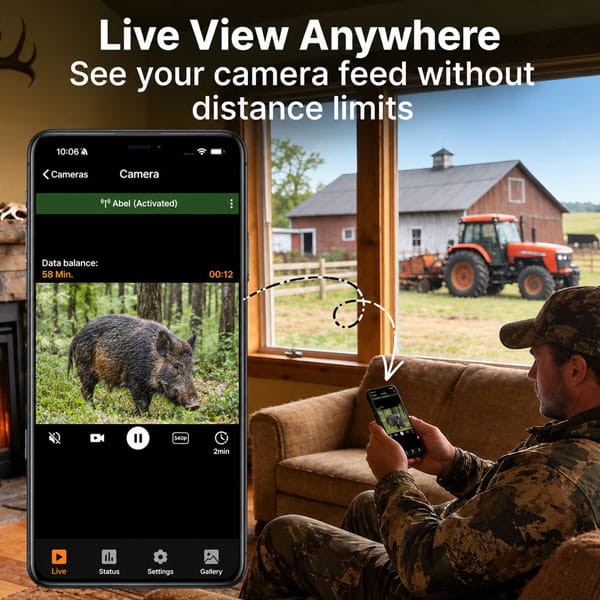
- Live view uses the most; minutes of watching add up quickly.
- Video: longer, higher-resolution clips mean larger files per trigger.
- Number of triggers: a hundred false triggers a day turn a small plan into a problem.
- Photos instead of video are usually more modest, although burst mode and short intervals still add up.
- Previews and thumbnails are small but not negligible at a very busy site.
- Weak signal keeps the modem connected longer and causes retries, which costs data and battery.
Fix false triggers and limit live view to what you really need before you buy a bigger plan. GardePro’s Lite Video preview, which shows the full clip at about 2 frames per second before you download it, also helps keep data use down.
7. What a 4G camera really costs over 12–24 months
Compare the camera price plus 12–24 months of connection, not the box price alone. A typical cost picture includes:
| Item | Unlocked SIM (e.g. GardePro) | Locked SIM with paid cloud |
|---|---|---|
| Camera | One-off purchase | Often cheaper at purchase |
| SIM and data | Your own plan, often around €2.50 a month in our experience | Included in subscription or credits |
| Cloud and app | Free basic viewing | Subscription or credits |
| HD photos and full video | Free in the GardePro app | Often paid packages |
| Batteries and charging | Depends on site and power option | Depends on site and power option |
| Your time | Fewer empty images if the site is set up well | Same |
From customer experience, integrated SIMs and cloud credits often cost around €10–15 a month per camera, about €120–180 a year, while an unlocked SIM often costs around €2.50 a month, about €30 a year or less. These are approximations from practice, not official price lists, and they vary by country and operator.
Watch for three traps. Standard images are sometimes deliberately limited to push HD packages. Subscriptions on very cheap cameras from online marketplaces are often not disclosed before purchase. And seasonal peaks, such as September and October, can use up a monthly photo limit quickly, because limits usually apply per camera. Be wary of anyone selling a “satellite” trail camera too: in almost all cases it is ordinary 4G/LTE.
Three questions to ask before buying any 4G camera: is cloud viewing free, are HD photos and full videos free, and can I use my own SIM? With GardePro the answer to all three is yes.
8. GardePro cameras with unlocked SIM
Transparency: Scoutguard EU sells GardePro. These suggestions come from service and field experience with SIM setup, not from laboratory tests or plan prices.
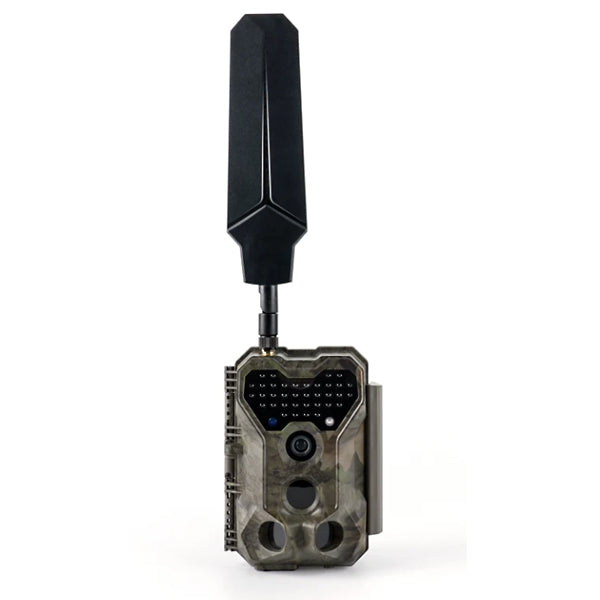
- GardePro X50: 4G cloud with unlocked SIM on AA batteries. A good fit when you want photos and video on your phone without live view, or move the camera between sites.
- GardePro X60P Pro Max Live: live view and an 8000 mAh Li-ion battery. Live view uses data faster, so the signal at the site needs to be reliable.
- GardePro X70 Pro GPS Live: live view and built-in GPS with a 7800 mAh Li-ion battery. Choose a plan with some reserve if you use live view often.
All three use an unlocked SIM (not included), a free app and no hidden credits for viewing basic images, and come with a 2-year warranty. The monthly cost of the card stays between you and your operator. More models are in the GardePro category.
Key takeaways
- Test data and 4G at the tree, at camera height, with the operator you plan to use.
- Cloud, e-mail, FTP and MMS need different settings; MMS/WAP is not internet.
- GardePro cloud cameras usually set the operator profile automatically.
- Disable the SIM PIN, make sure data is active and test at home first.
- Fix false triggers before buying a bigger data plan.
- Compare 12–24 months of total cost, not the box price.
Frequently asked questions
Do I need to enter an APN on a GardePro camera?
Usually not. GardePro cloud cameras normally obtain the operator profile automatically. Insert an active data SIM with the PIN disabled and run the connection test in the app.
Will any prepaid SIM work?
Only if mobile data is included and enabled. Prepaid cards with data blocked will not send images.
Do I need live view to use an unlocked SIM?
No. Live view is an extra on some models. Cameras such as the X50 or X60P send photos and video over 4G without it.
How much data does a trail camera use?
It depends on live view, video length and resolution, the number of triggers and signal strength. Reduce false triggers and live view first, then choose the plan size.
The camera shows signal but sends nothing. Why?
Check that data is active on the plan, the PIN is off, the right sending method is selected and, if the camera asks for one, the internet APN rather than the MMS profile is entered.
Is a “satellite” trail camera better?
Be careful with that claim: in almost all cases these cameras use ordinary 4G/LTE.
Information is provided for general guidance; check the specifications on the product page or with the manufacturer, and settings with your operator.